Back Ground
Hello everyone, I'm a web engineer volunteering to teach IT in Cambodia.
It's been a year since I started living in Cambodia.
These days, I'm becoming more comfortable teaching in Khmer and English.
Today, I'd like to talk about creating an attendance register using Google Forms and Google Spreadsheets.
Google Forms to fill out for each class period
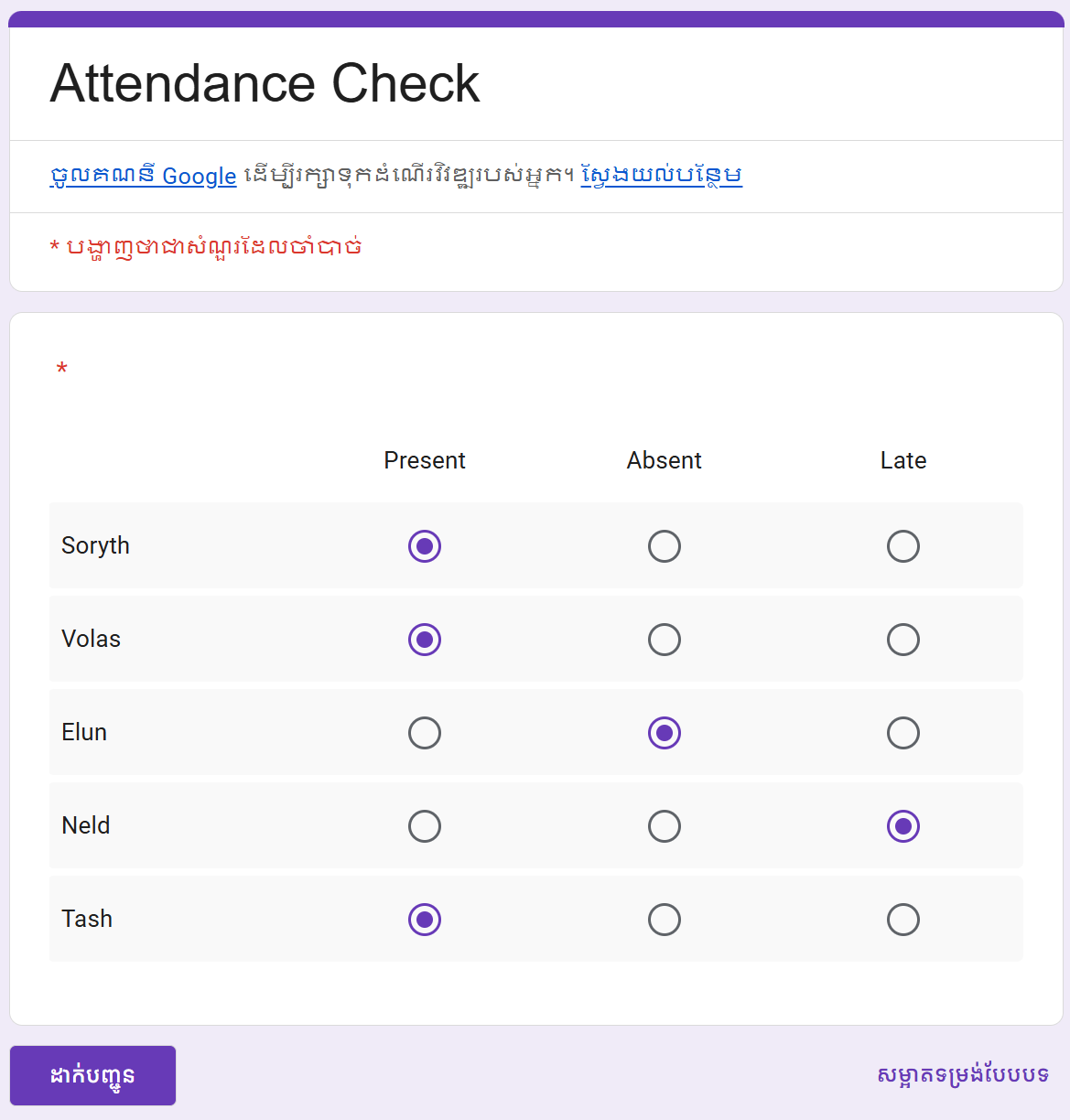 This is a form for entering student attendance status.
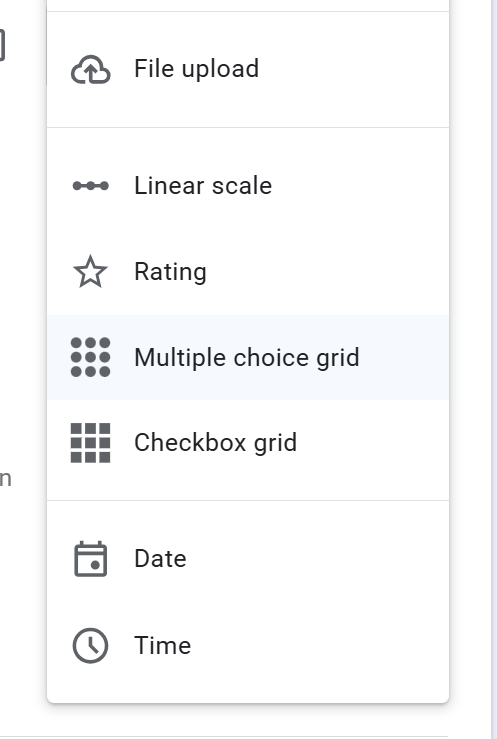
Creating it is easy; simply select "Multiple choice grid" in the question type section.
The teacher fills out this form on their smartphone or computer at the end of each class.
Viewing attendance records from various angles using Google Spreadsheet
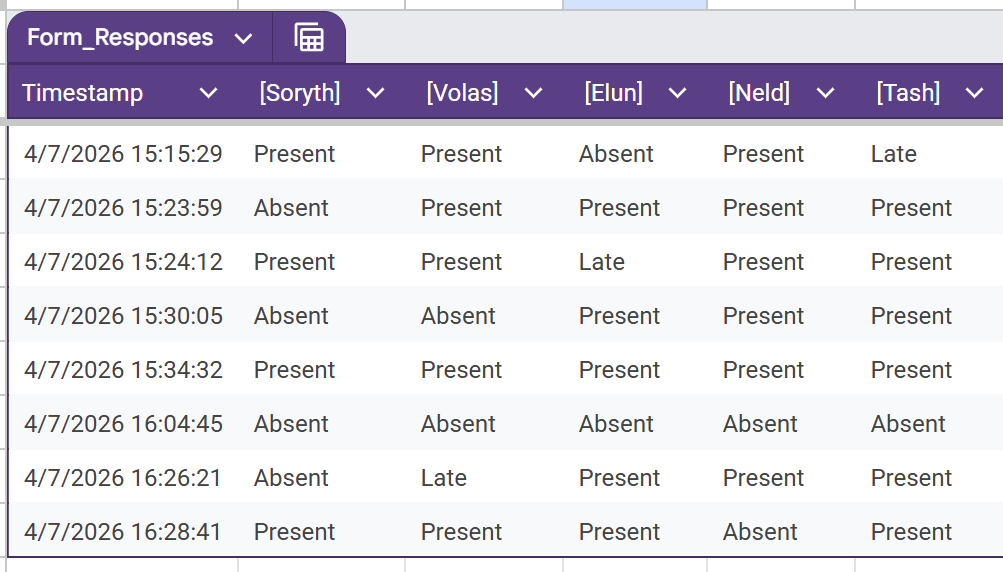
Having the information arranged horizontally by date is difficult to read.
Looking at the Google Forms spreadsheet from earlier, this is what it looks like directly in Google Sheets.
As the number of students increases, it becomes more difficult to move your eyes horizontally.
Sheet with rearranged rows and columns
To make it easier to view even as the number of students increases, we will add a sheet that displays a two-dimensional table with dates as column headers and student names as row headers.
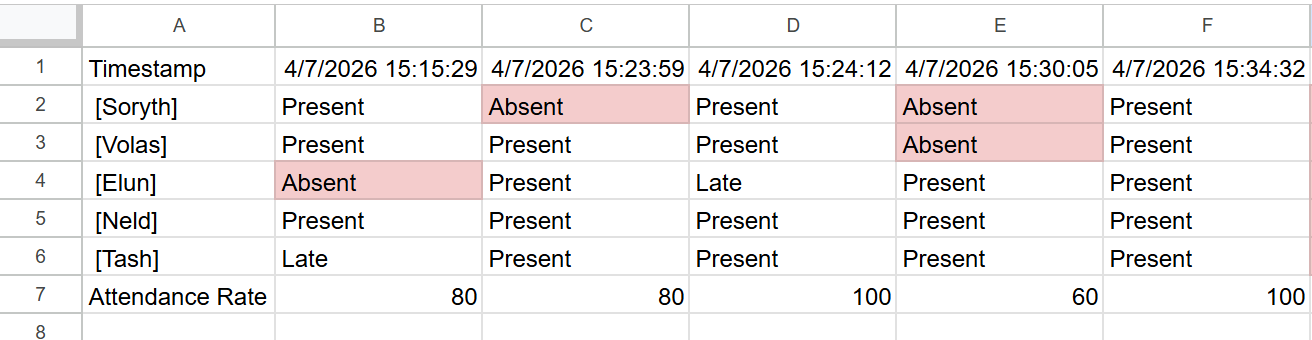 To transpose the rows and columns of a table, simply enter the following formula in cell A1.
=TRANSPOSE(Form_Responses[#ALL])
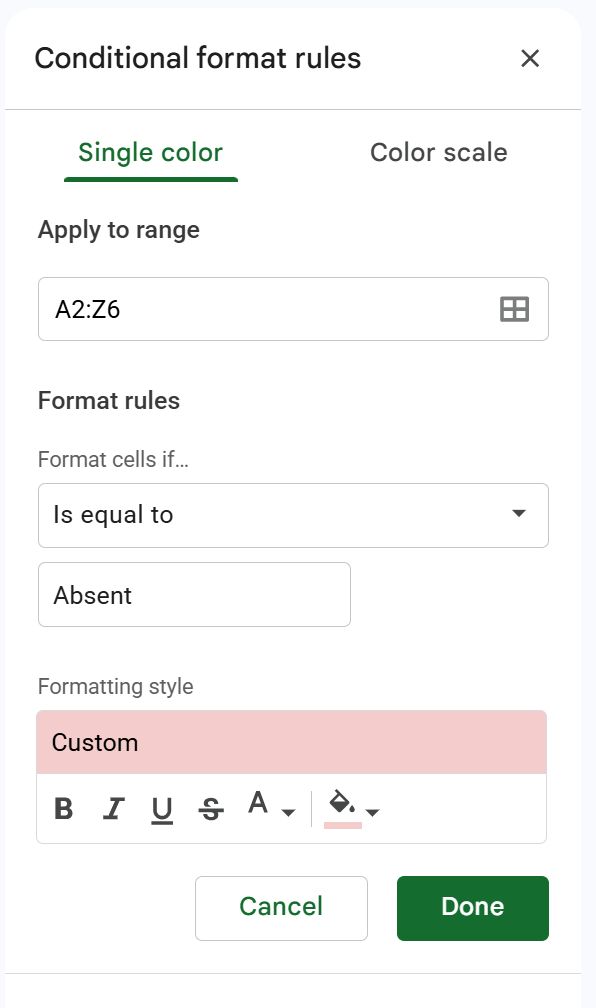
To change the background of Absent, you need to configure the Conditional Formatting settings.
 To add an Attendance Rate to the original sheet (Form Response), simply add a column and enter the following formula:
Enter the formula in the top cell of the added column and use autofill; it will automatically update as new responses are added.
=(COUNTIF(B2:F2,"Present")+COUNTIF(B2:F2,"Late"))/COUNTA(B2:F2)*100
A sheet to view the attendance rate for each student.
Since students may not receive credit if they don't meet a certain attendance rate, we will also create a sheet to track each student's attendance rate.
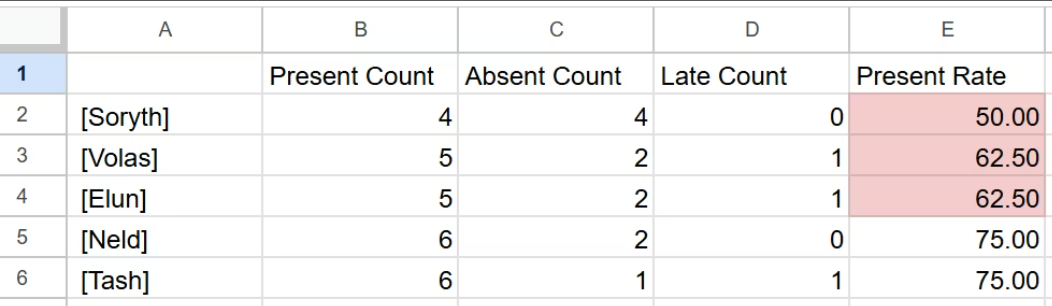 The process is very simple. Copy and paste the column containing the students' names, and then use the following formula to obtain the number of times they attended, were absent, and were late.
=COUNTIF(Transpose!2:2, "Present")
(Transpose is the name of the sheet displaying the table with the rows and columns swapped.)
The last column contains a simple formula for calculating attendance. This time, tardiness is included in the attendance calculation.
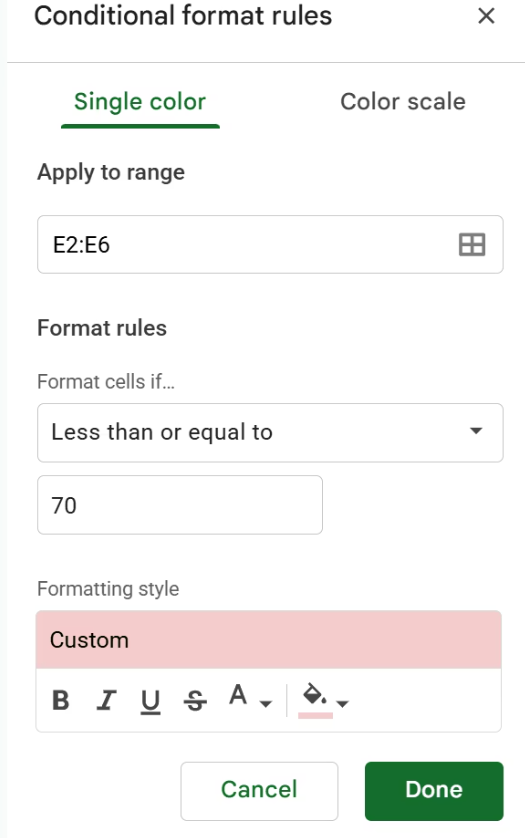
If the attendance rate is 70% or less, the background turns red.
Sheet for recording reasons for absence and tardiness.
It might be helpful to be able to record the reasons for absences and tardiness when evaluating students, so I'll create a sheet for that purpose as well.
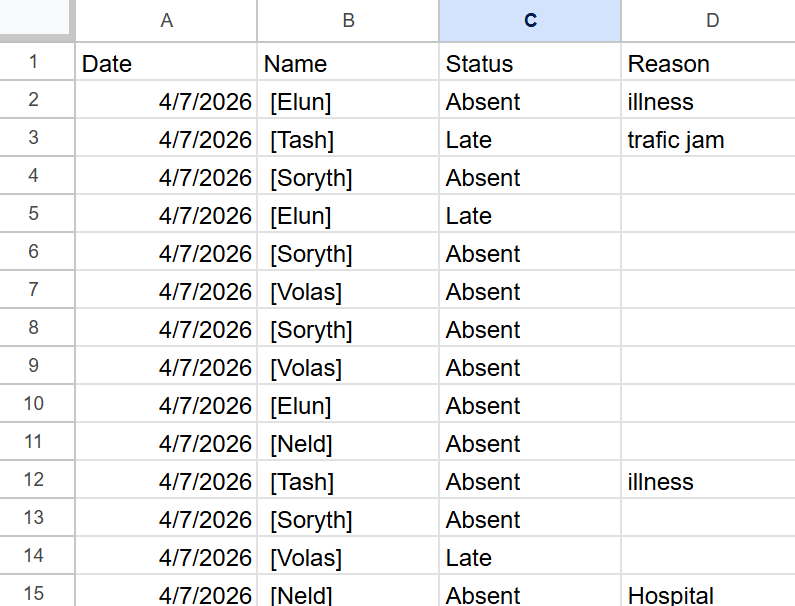 Enter this formula into cell A2.
=FILTER(
  SPLIT(
    FLATTEN(Form_Responses[Timestamp] & "♦" & Form_Responses[[#HEADERS],[ '[Soryth']]:[ '[Tash']]] & "♦" & Form_Responses[[ '[Soryth']]:[ '[Tash']]]),
    "♦"
  ),
  (INDEX(
    SPLIT(
      FLATTEN(Form_Responses[Timestamp] & "♦" & Form_Responses[[#HEADERS],[ '[Soryth']]:[ '[Tash']]] & "♦" & Form_Responses[[ '[Soryth']]:[ '[Tash']]]),
      "♦"
    ),
    ,3
  ) = "Absent") +
  (INDEX(
    SPLIT(
      FLATTEN(Form_Responses[Timestamp] & "♦" & Form_Responses[[#HEADERS],[ '[Soryth']]:[ '[Tash']]] & "♦" & Form_Responses[[ '[Soryth']]:[ '[Tash']]]),
      "♦"
    ),
    ,3
  ) = "Late")
)
In the first row, you will enter your own column headers.
The End
My second round of classes will finally begin next month, so I'd like to try using this attendance register there.
If it works well, I'm thinking of sharing it with other teachers.
See you then!